Mini guide
Switching from Excel: where everything is
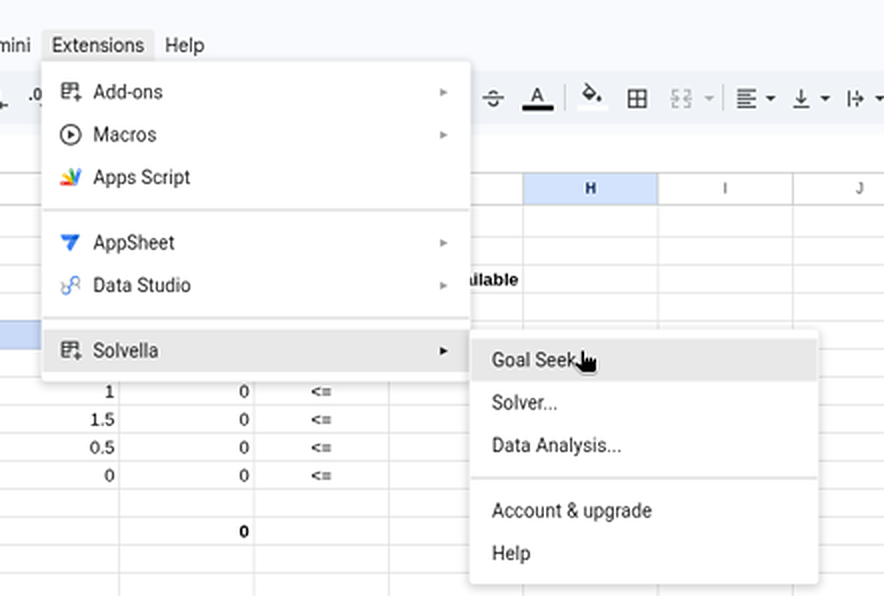
Same tools, same words, same reports. In Excel they sit on the Data tab; in Google Sheets they're under Extensions.
Excel button → Solvella
| In Excel | In Google Sheets with Solvella |
|---|---|
| Data › What-If Analysis › Goal Seek | Extensions › Solvella › Goal Seek... (opens as a panel on the right) |
| Data › Solver | Extensions › Solvella › Solver... |
| Data › Data Analysis | Extensions › Solvella › Data Analysis... |
| Data › What-If Analysis › Scenario Manager | Goal Seek panel › More tab › Scenarios PRO |
| Solver › Load/Save | Save model in the Solver dialog. It's stored with the sheet and filled in next time. |
| Solver › Options | Options, next to Solving method |
| Answer and Sensitivity reports | The same reports, each on a new tab |
| The small collapse button on a range box | The small button at the end of each range box |
| File › Options › Add-ins › Analysis ToolPak | Nothing to switch on. Install Solvella once and it's in every spreadsheet. |
The dialogs use Excel's words
Set Objective, By Changing Variable Cells, Subject to the Constraints, Simplex LP, GRG Nonlinear: it's all where you'd expect. The Data Analysis tools have the same names and options as the ToolPak.
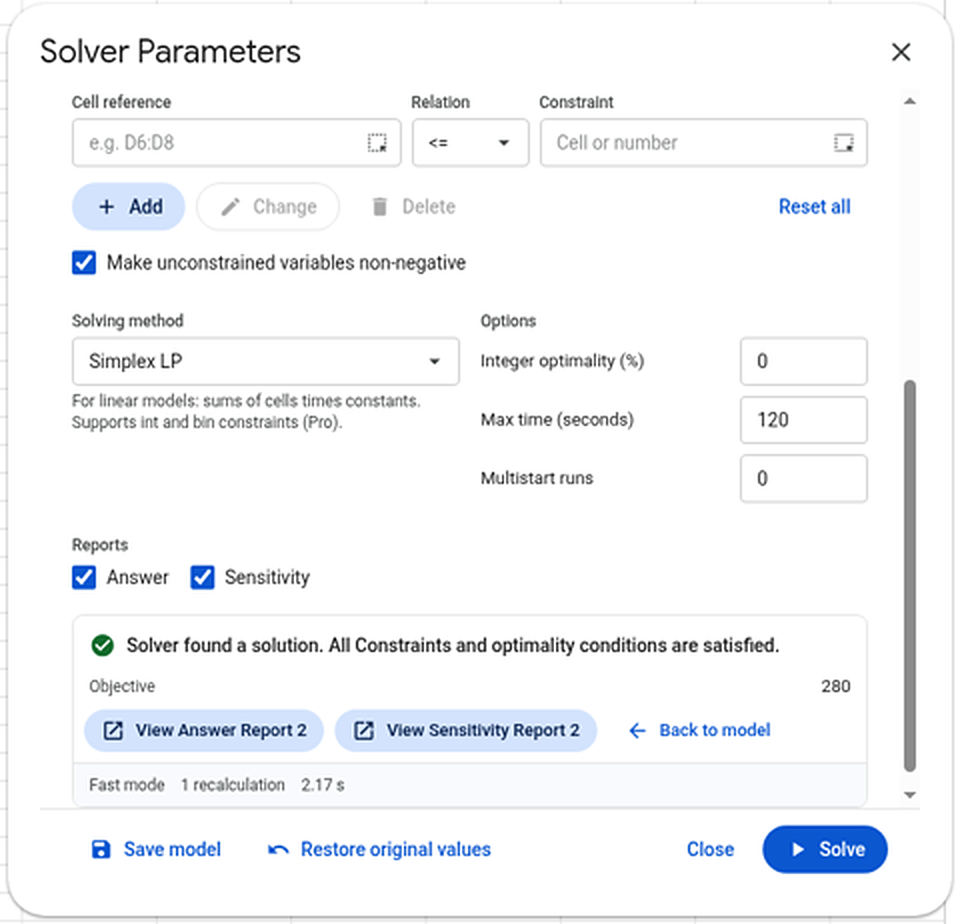
The Solver dialog uses the same words as Excel's.Enlarge

What's different
- Results are values, not live formulas. If your data changes, run the tool again.
- Excel files need converting first. Add-ons only run in Google Sheets files: open the .xlsx and use FileSave as Google Sheets, or bring it in with FileImport.
- Solver models don't carry over from Excel. Enter the objective, cells and limits once, press Save model, and they're kept with the sheet.
- Not there yet: the Evolutionary method and the
difconstraint. GRG Nonlinear with Multistart covers most of those models.