Mini guide
Solver: find the best plan
Solver changes several cells at once to make one number as big (or small) as possible, while staying within your limits. Example: a workshop makes desks, tables and chairs. How many of each earns the most profit without running out of timber or hours?
Follow alongThe workshop plan used in this guide, with units to make starting at 0.
Look at the model
- 1 B5:D5: how many of each to make. These are the cells Solver changes. Start them at 0.
- 2 E12: total profit, a formula. We want this as big as possible.
- 3 E7:E10: how much timber, time and table demand the plan uses (formulas).
- 4 G7:G10: how much is available. These are the limits.
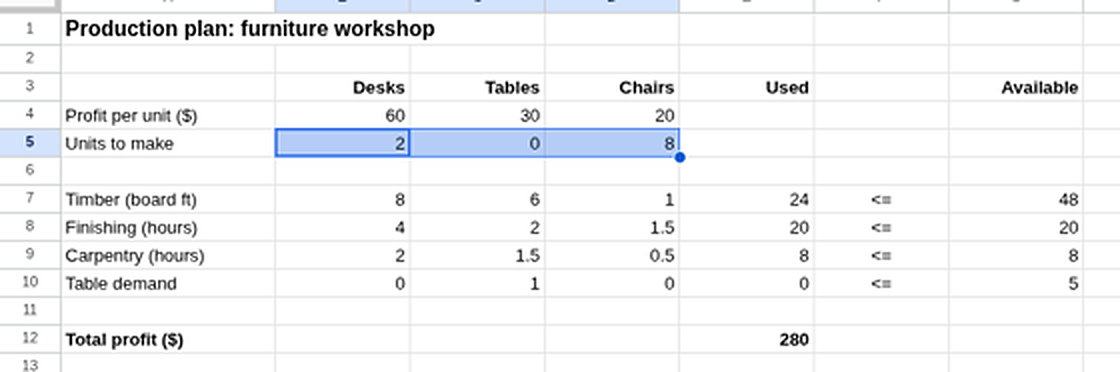
The workshop plan, after solving.Enlarge Open Solver and say what you want
Click ExtensionsSolvellaSolver..., then fill in:
- 1 Set objective: E12, the profit cell.
- 2 To: choose Max, for the most profit.
- 3 By changing variable cells: B5:D5, the units to make.
- 4 Your limits appear in this list once you add them in the next step.
Type the cell names, or click the small grid button in a box and select the cells on the sheet. You don't need $ signs.
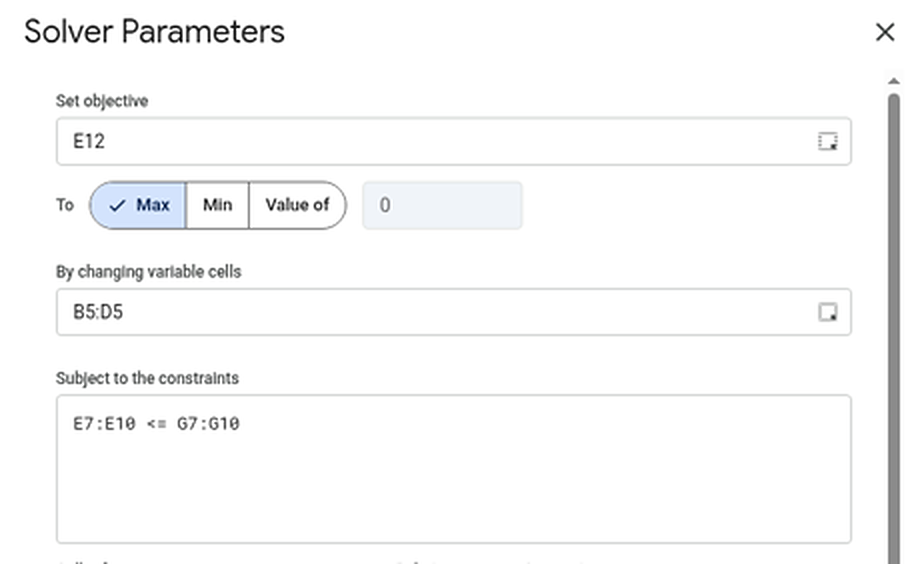
The objective, Max, the cells to change, and the list of limits.Enlarge Add the limits
Below the list, in the row for a new limit:
- 1 Cell reference: E7:E10 (what's used)
- 2 Relation: <= (no more than)
- 3 Constraint: G7:G10 (what's available)
- 4 Press Add. One line covers all four limits, because both ranges are the same size.
Leave Make unconstrained variables non-negative ticked, so Solver can't suggest making −3 desks.

Add each limit here, then press Add.Enlarge Pick the method and press Solve
- 1 Simplex LP: the right choice when every formula just multiplies amounts by numbers and adds them up, like here.
- 2 Tick Answer and Sensitivity to get the reports. (The Sensitivity report is a Pro feature.)
- 3 Press Solve.
- 4 About a second later: Solver found a solution. The best profit is $280, and the sheet now says make 2 desks, 0 tables and 8 chairs.
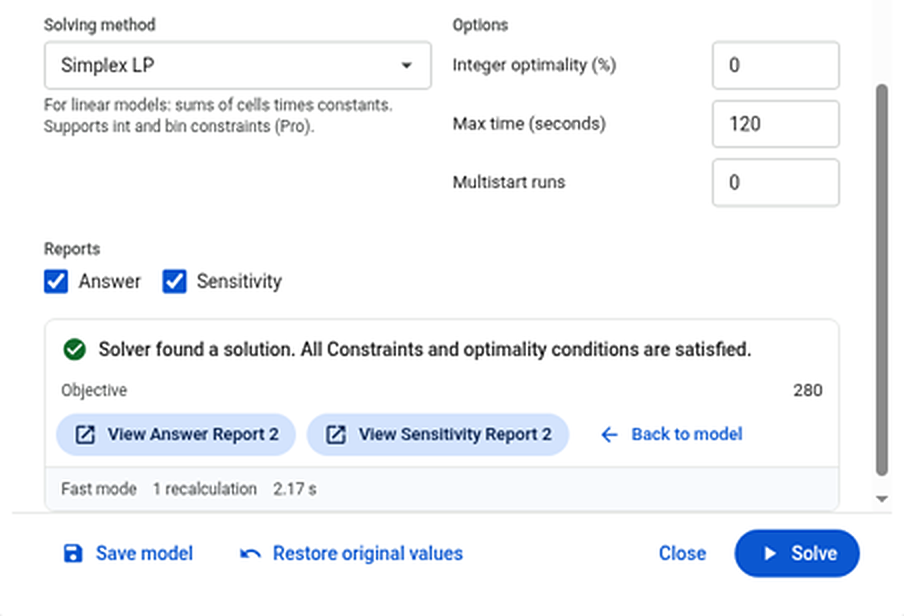
Pick the method and reports, press Solve, and the result appears.Enlarge Read the Answer report
Press View Answer Report. It opens on a new tab and tells you:
- 1 Objective Cell: profit went from $0 to $280.
- 2 Variable Cells: make 2 desks, 0 tables, 8 chairs.
- 3 Constraints: Binding means that limit is used up (finishing and carpentry hours). Not Binding means some is left over, shown as Slack: 24 board feet of timber spare, and room for 5 more tables.
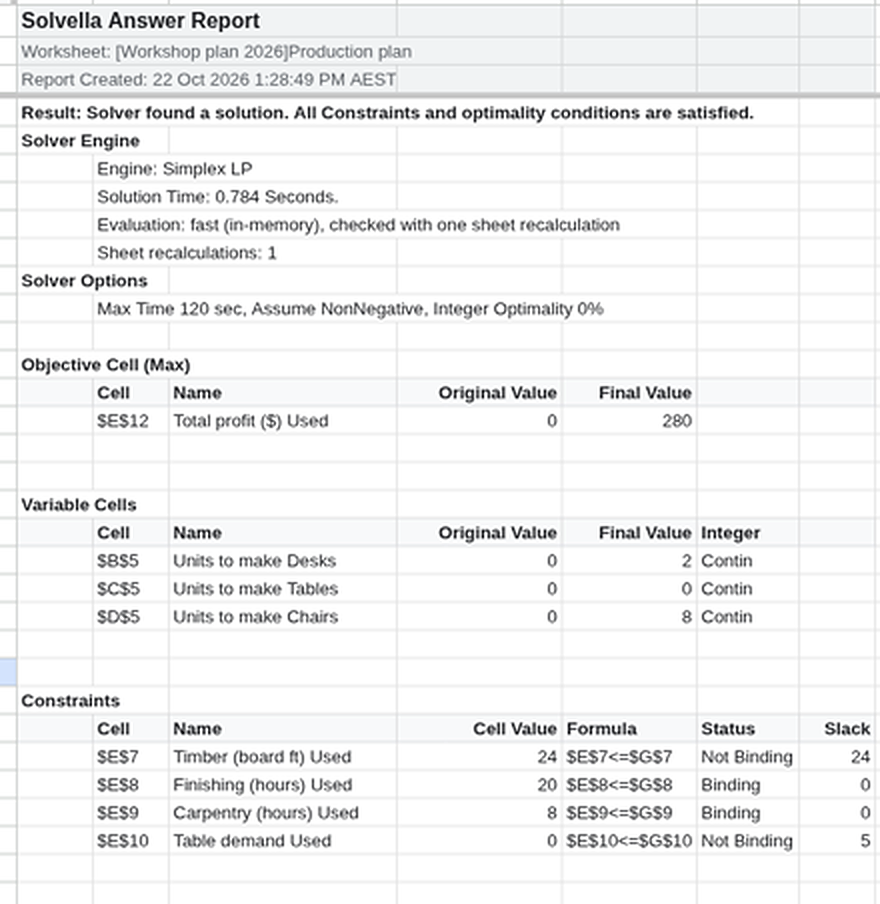
The Answer Report, on its own tab.Enlarge Read the Sensitivity report PRO
It answers "what if?" without solving again:
- 1 Reduced cost −5 for tables: every table you force into the plan cuts profit by $5. Tables would need to earn $5 more ($35) to be worth making.
- 2 Shadow price 10 for finishing and carpentry: one extra hour of either adds about $10 profit. That's the most an extra hour is worth paying.
- 3 Allowable increase 20, decrease 4 for desks: desk profit can be anywhere from $56 to $80 and the best plan stays the same.
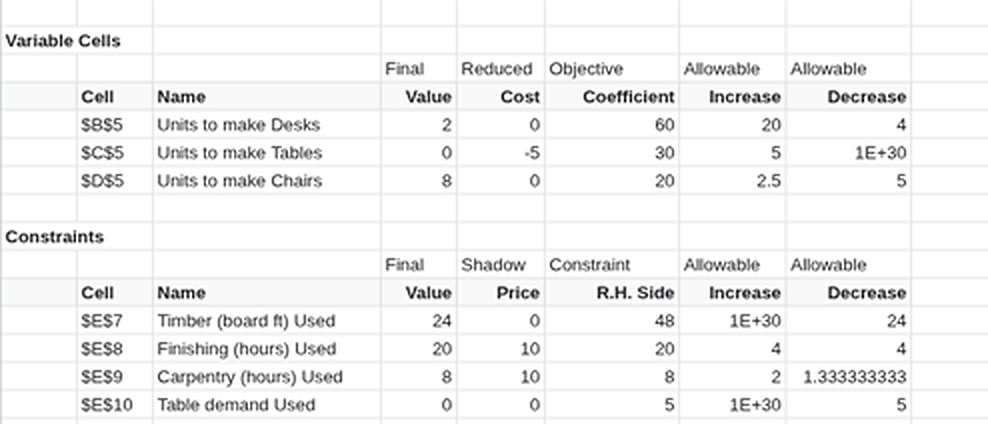
The Sensitivity Report, on its own tab.Enlarge
Tip: press Save model and the whole setup is stored with the sheet, ready next time. Got "could not find a feasible solution"? See Troubleshooting. Nonlinear models, integer constraints and every message: Solver in detail.